macOS menu-bar app · Free & open-source
One OpenAI endpoint for local LLM engines
— with cross-engine memory management
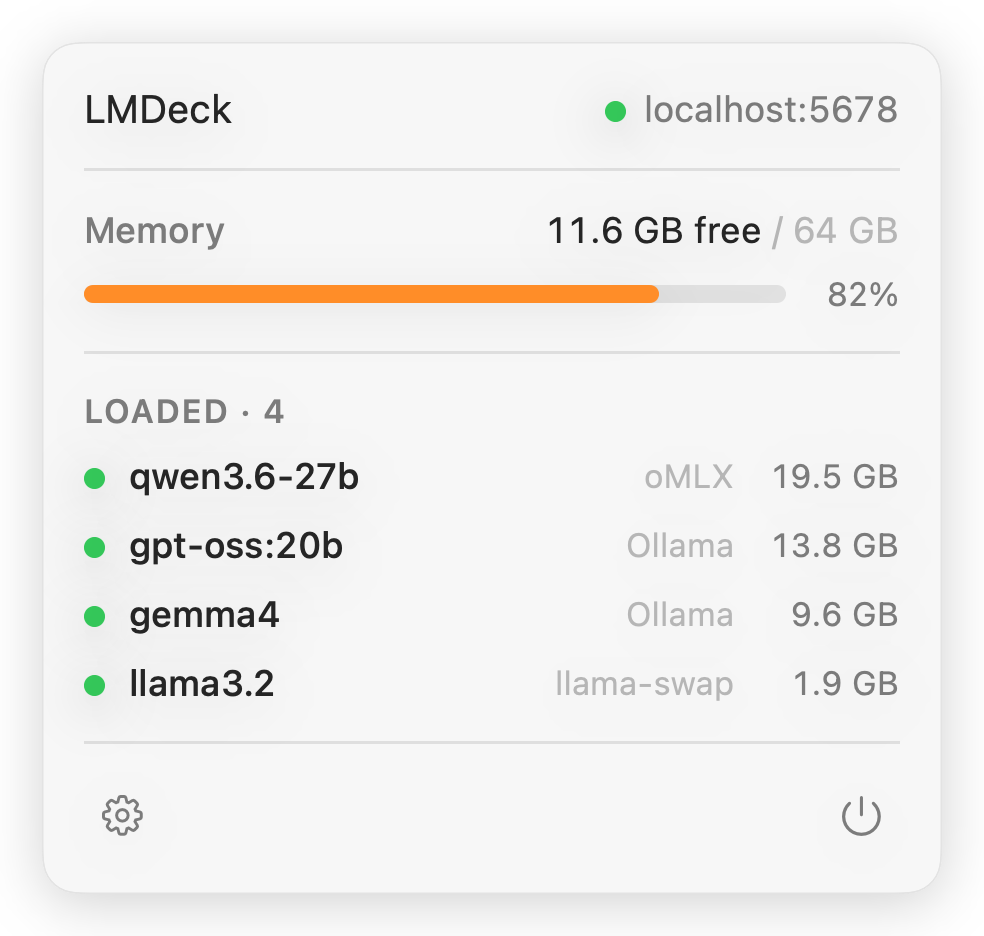
LMDeck puts a single OpenAI-compatible endpoint in front of Ollama, oMLX, LM Studio and llama-swap — and manages memory across all of them. Point any client at localhost:5678/v1; it routes to whichever engine owns the model and gates every load against your real free RAM.
The problem
Run models across several engines and everything scatters. Each tool is hardwired to one engine's port. And because the engines share one unified-memory pool, kicking off a load can OOM whatever's already resident — no single engine can fix that, because each only sees its own footprint.
What LMDeck does
The conductor that sits above your engines.
One endpoint, one memory budget, one menu-bar view — without touching how each engine runs.
Memory-aware loading & cross-engine eviction
LMDeck estimates each model's footprint and treats free RAM as one budget across engines. Before any load it makes, it checks the model fits — and (on by default) evicts the least-recently-used unpinned model from any engine to make room. If it still won't fit, you get a clean insufficient_memory refusal instead of a frozen Mac. Pin the ones you always want hot.
A native Mac app
Lives in your menu bar: a free-RAM gauge and every loaded model across all engines, at a glance. Real UI for ports, keys and per-model load/unload — no YAML, no daemons, no terminal.
One endpoint, smart routing
A single base URL fronts all your engines. Send a bare model name and LMDeck routes to the highest-priority engine that has it; qualify it as engine/model to pin one. Your client URL never changes.
Near-zero setup
On first launch LMDeck detects which engines you run and enables just those. Auto configure reads each engine's port and key from what's already on your machine — read-only, nothing leaves your Mac.
Automatic model discovery
Nothing to register. LMDeck polls each engine and surfaces every model — loaded state, on-disk size, context window — at the endpoint and in the UI. Pull a new model and it just appears.
Pin what must stay hot
Pinned models are never auto-evicted. On Ollama, LMDeck also keeps them resident in the engine — no idle timeout; on other engines a pin is best-effort. Everything else competes for the budget.
Secure by default
Loopback-only out of the box. Set an API key to lock the endpoint; bind to your LAN and LMDeck hardens automatically. Keys live in the macOS data-protection Keychain in signed builds.
A native control API
Beyond the OpenAI surface: a rich /api/v1/models catalog with a can_load flag, plus memory-gated, idempotent load/unload — for your own scripts and dashboards.
Supported engines
Four engines today, more planned.
Each enables independently. A bare model name resolves by a fixed priority — Ollama → oMLX → LM Studio → llama-swap — and you can always pin one with engine/model.
How it works
Running in three steps.
Install & launch
Homebrew or the .dmg. LMDeck appears in your menu bar.
Enable your engines
Settings → Engines → Auto configure. A status dot turns green when each is reachable.
Point your client at it
Set the base URL to http://localhost:5678/v1 — the same models you'd call directly, now unified.
# point any OpenAI client at the unified endpoint
curl http://localhost:5678/v1/chat/completions \
  -H "Content-Type: application/json" \
  -d '{"model": "qwen3.6:27b", "messages": [{"role":"user","content":"hi"}]}'
Install
Get LMDeck
Free and open-source. macOS 15+ on Apple Silicon.
brew tap enclavum/tap
brew trust enclavum/tap   # required on recent Homebrew
brew install --cask lmdeck
Prefer a direct download? Grab LMDeck.dmg from the latest release.